
Lesson 1: Reply to every enquiry in seconds
Goal: Website form → enquiry sheet → WhatsApp demo-class invite.
What we’ll build
Section titled “What we’ll build”One workflow, three steps. The moment the form is submitted, Auto Appy saves the enquiry to the Enquiries 2026 sheet and sends the parent a WhatsApp invite to a free demo class.
1Something happens: a parent fills the enquiry form on Vidya Coaching's website at 9:40 pm. This is the trigger, the "when".
2Auto Appy receives the answers straight away: student name, phone and course (JEE).
3Step 1 runs: the enquiry is added as a new row in the "Enquiries 2026" Google Sheet.
4Step 2 runs: the parent gets a WhatsApp message inviting Rahul to a free demo class.
5Done in about two seconds, at 9:40 pm, while the centre is closed. Every enquiry, every time.
In Auto Appy terms: a Webhook trigger (the form), a Google Sheets step and an Auto Appy WhatsApp step. We’ll name the agent Asha, after the front-desk role she takes over.
Before you start
Section titled “Before you start”- An Auto Appy account (Neha signs in with her work email; see sign in).
- The Google account that owns the enquiry sheet.
- An approved WhatsApp template for the invite, here called
demo_class_invite, created in Auto Appy WhatsApp. - Access to the website’s enquiry form settings, or someone who can edit the form.
Watch the build
Section titled “Watch the build”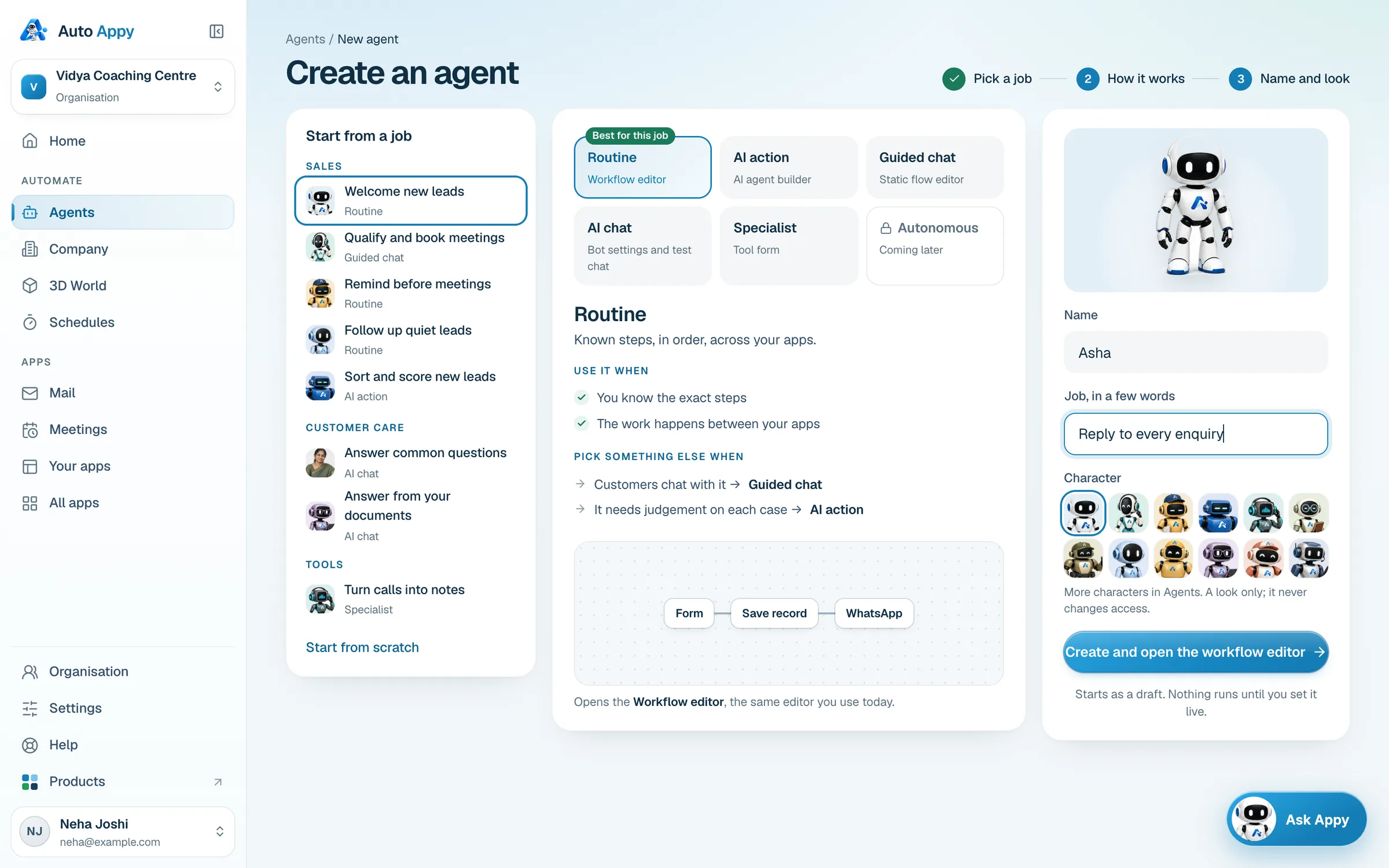
Step by step
Section titled “Step by step”1. Create the agent
Section titled “1. Create the agent”-
Go to Agents and click New agent.
Open New agentautoappy.com/agents/new -
Under Start from a job, choose Welcome new leads. Keep the build method on Routine.
-
Name it
Ashaand set the job toReply to every enquiry. Pick a character if you like. -
Click Create and open the workflow editor.
2. Catch the enquiry with a webhook
Section titled “2. Catch the enquiry with a webhook”-
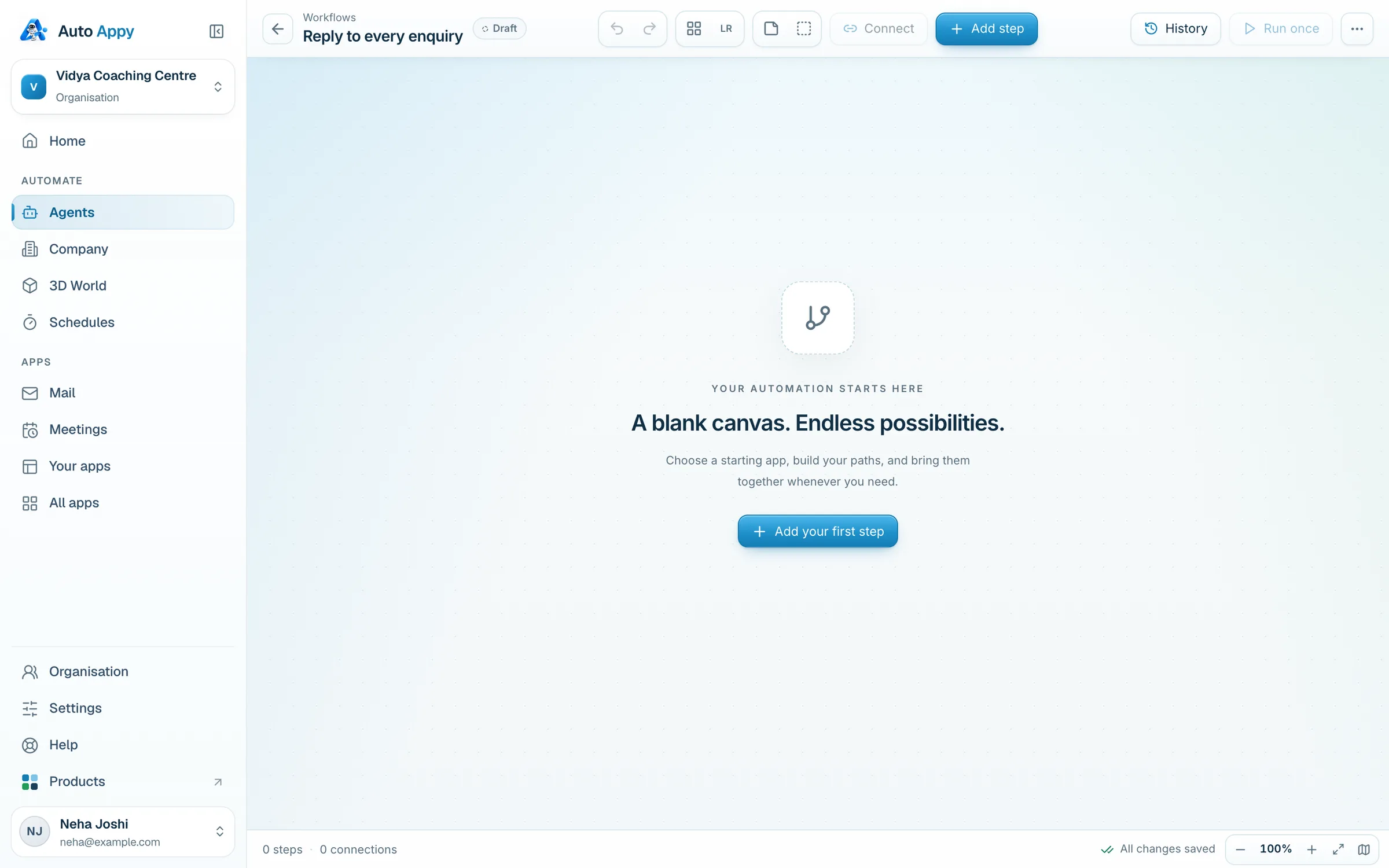
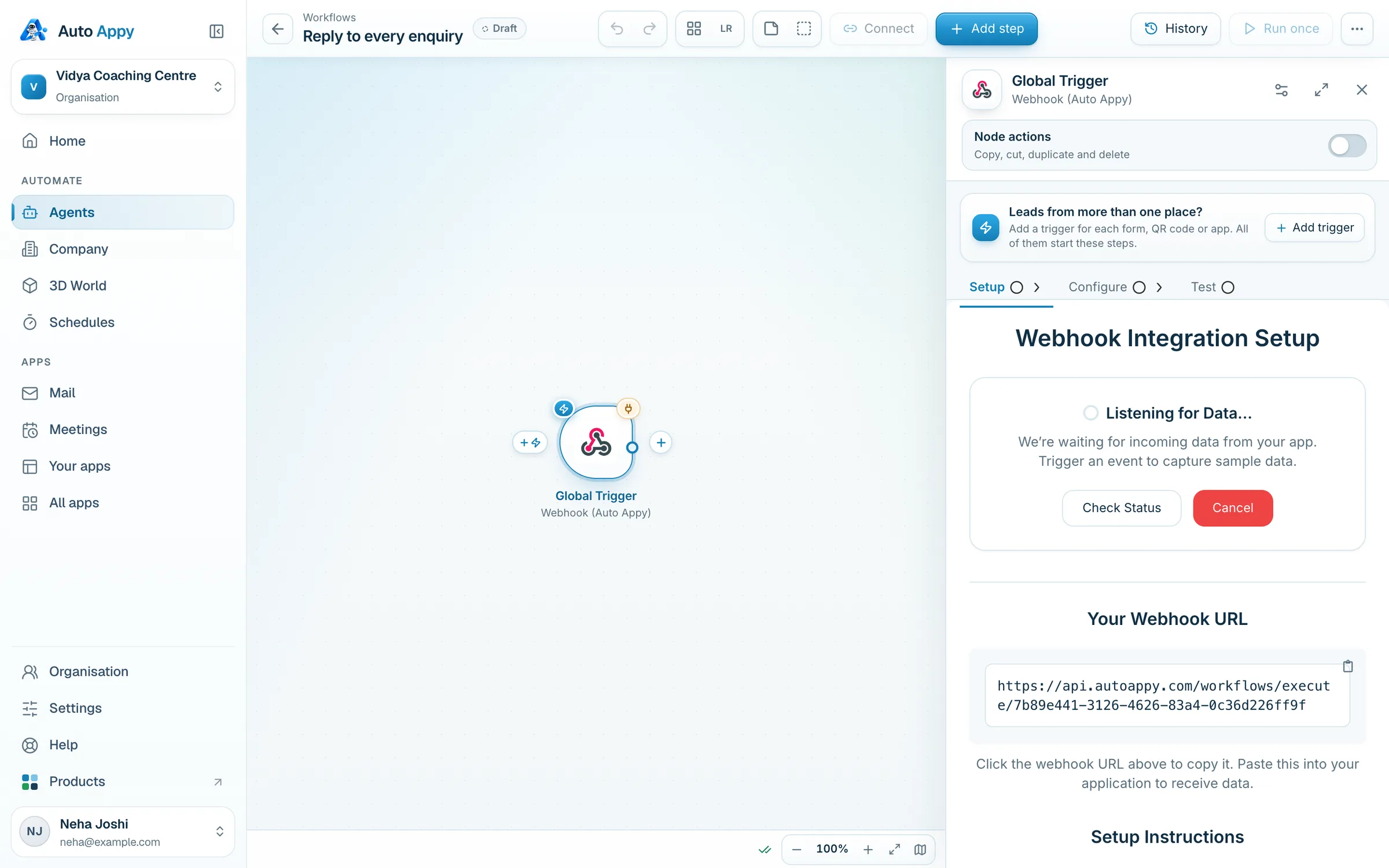
Click Add your first step, search
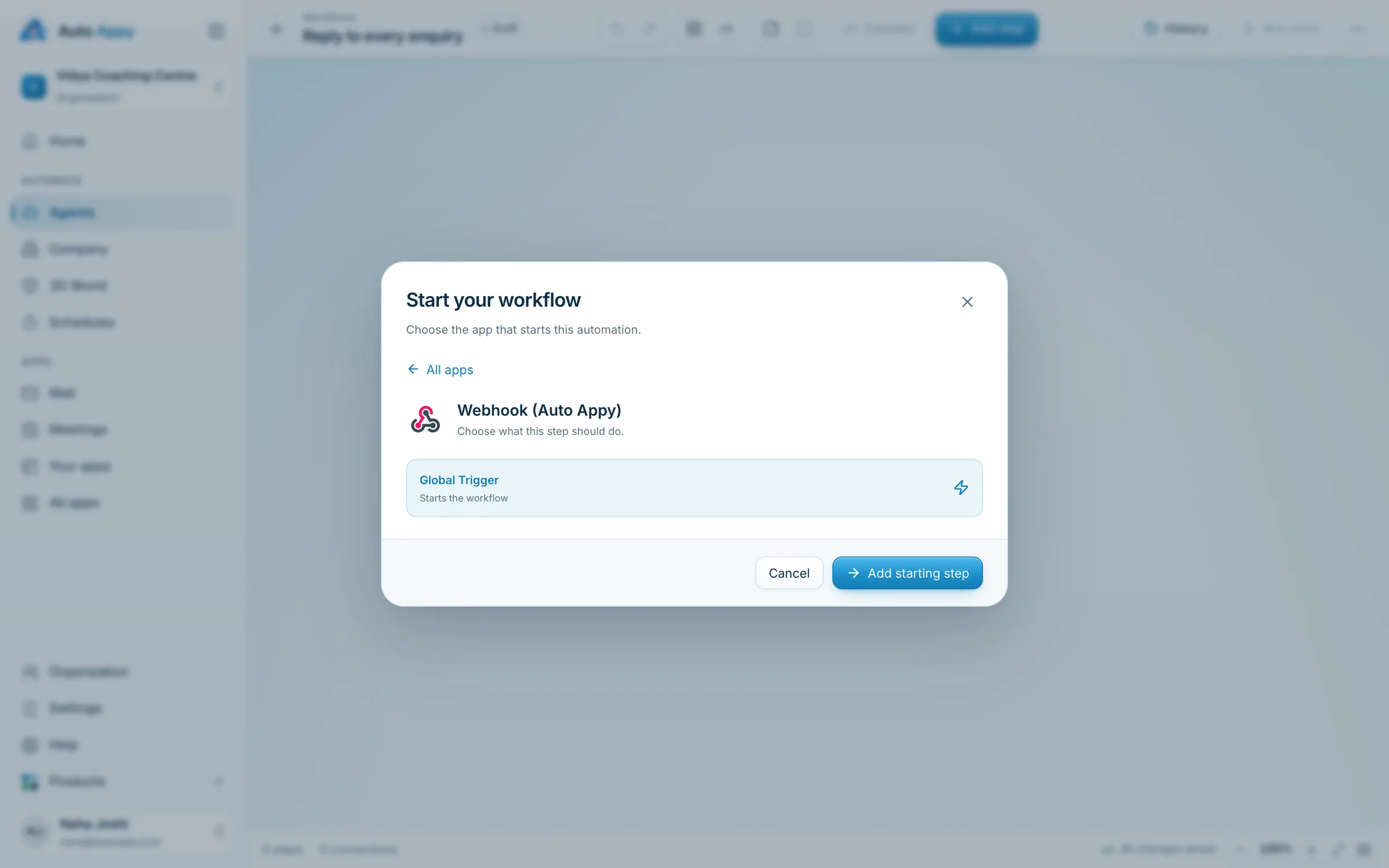
Webhook, choose Webhook (Auto Appy) → Global Trigger, and click Add starting step. -
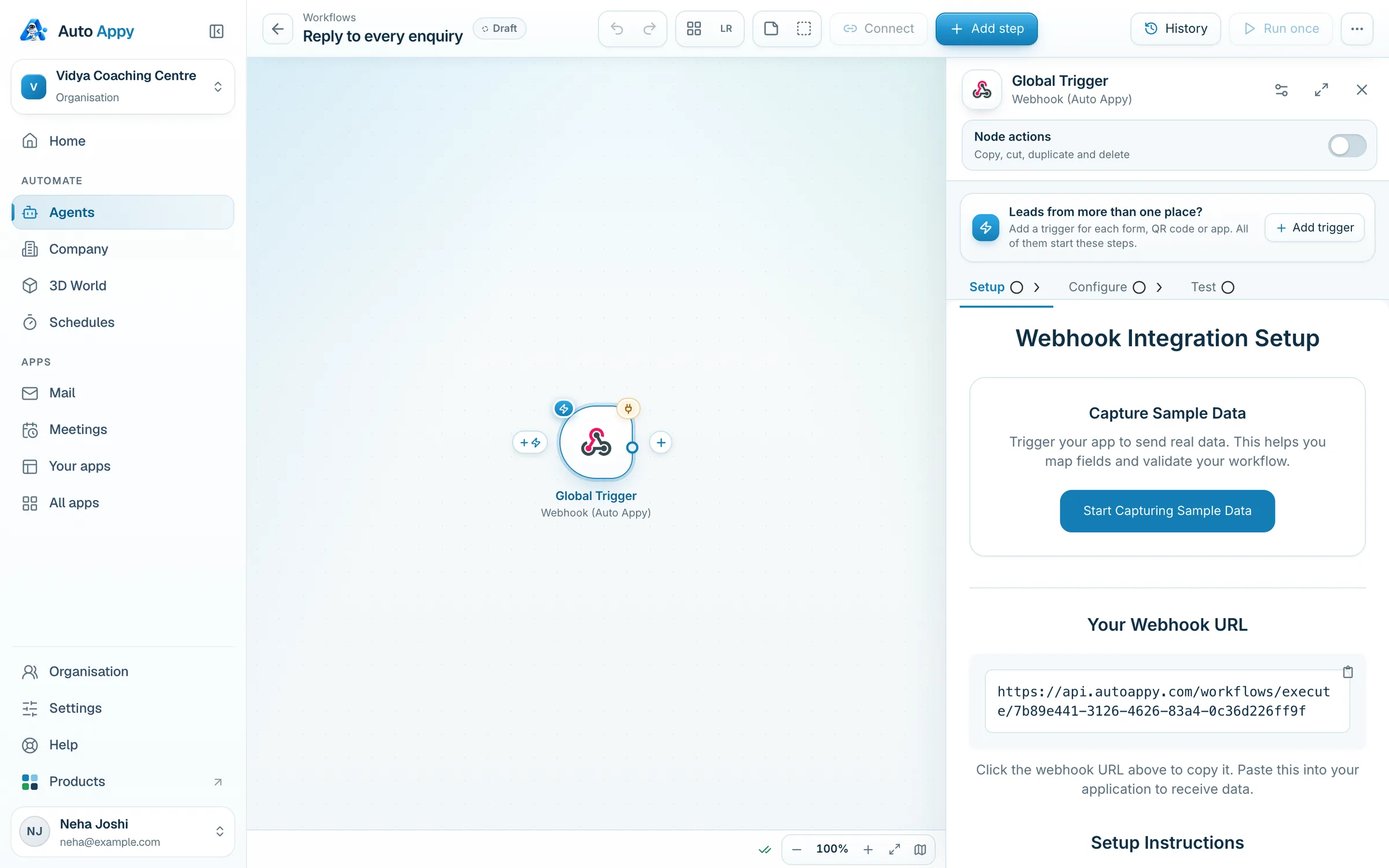
On the Setup tab, click Your Webhook URL to copy it.
-
Give the URL to whoever manages the website, and ask them to send the enquiry form to it. For a plain HTML form it looks like this:
<form method="POST" action="https://api.autoappy.com/workflows/execute/YOUR_WORKFLOW_ID"><input name="student_name" placeholder="Student's name" required><input name="parent_name" placeholder="Parent's name"><input name="phone" placeholder="WhatsApp number, e.g. 9198XXXXXXXX" required><select name="course"><option>JEE</option><option>NEET</option><option>Foundation</option></select><select name="class"><option>11</option><option>12</option><option>Dropper</option></select><select name="branch"><option>Kothrud</option><option>Hadapsar</option><option>Wakad</option></select><button>Book a free demo</button></form>WordPress form plugins (Elementor, WPForms, Contact Form 7 add-ons) have a Webhook setting where you paste the same URL.
-
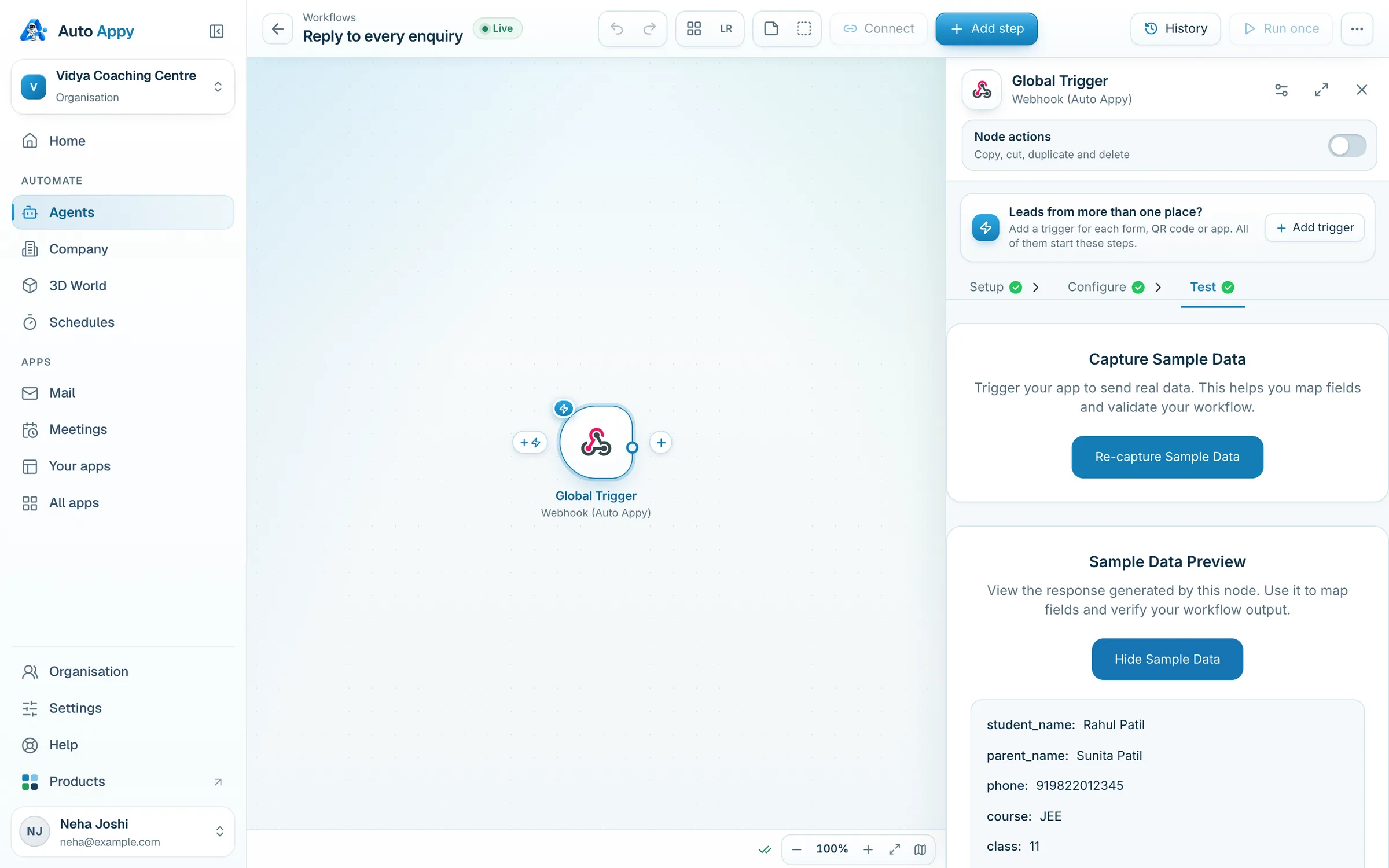
Click Start Capturing Sample Data, then submit the form once with test details. Click Check Status.
3. Save the enquiry to Google Sheets
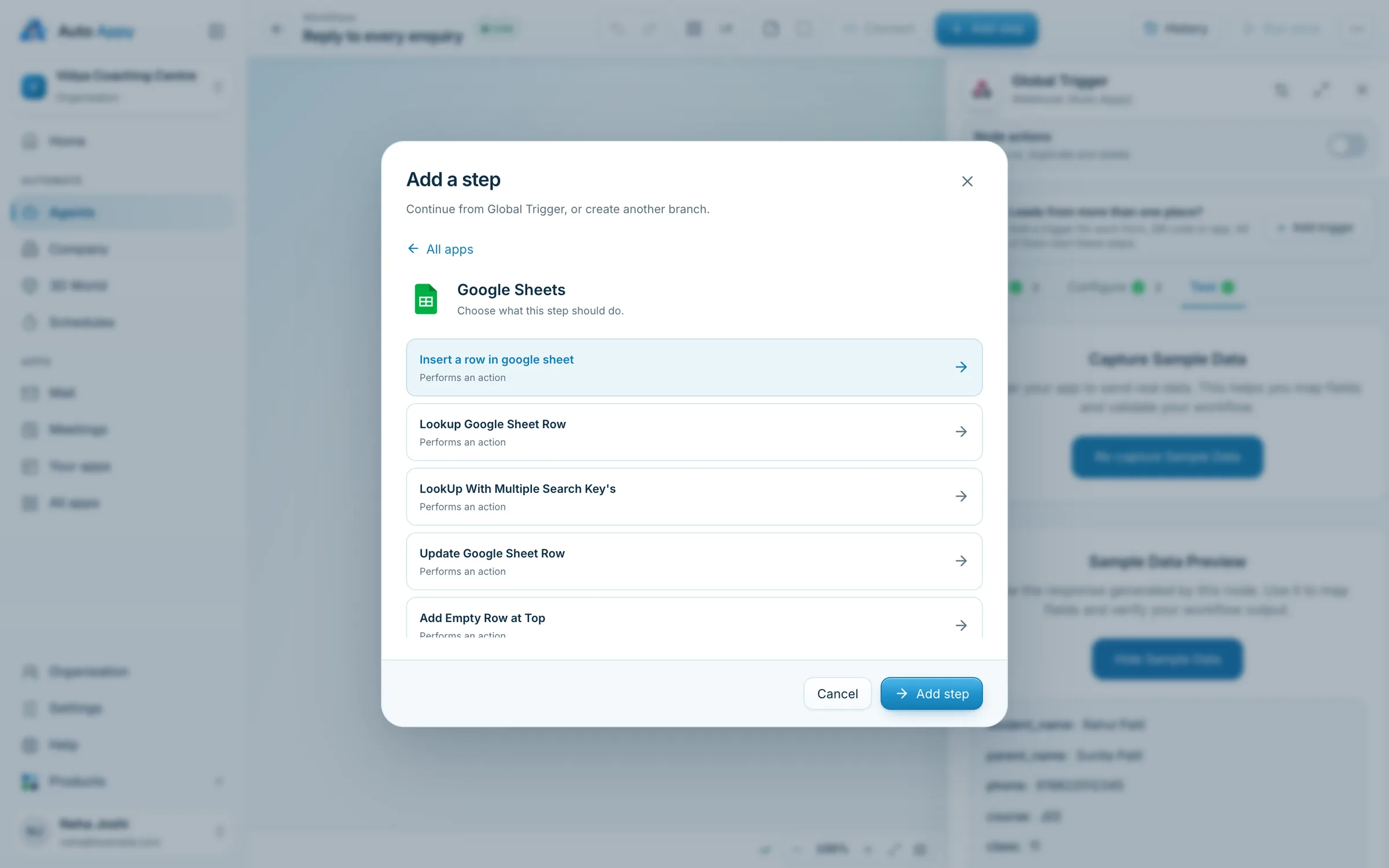
Section titled “3. Save the enquiry to Google Sheets”- Click + to the right of the trigger and choose Google Sheets → Insert a row in google sheet → Add step.
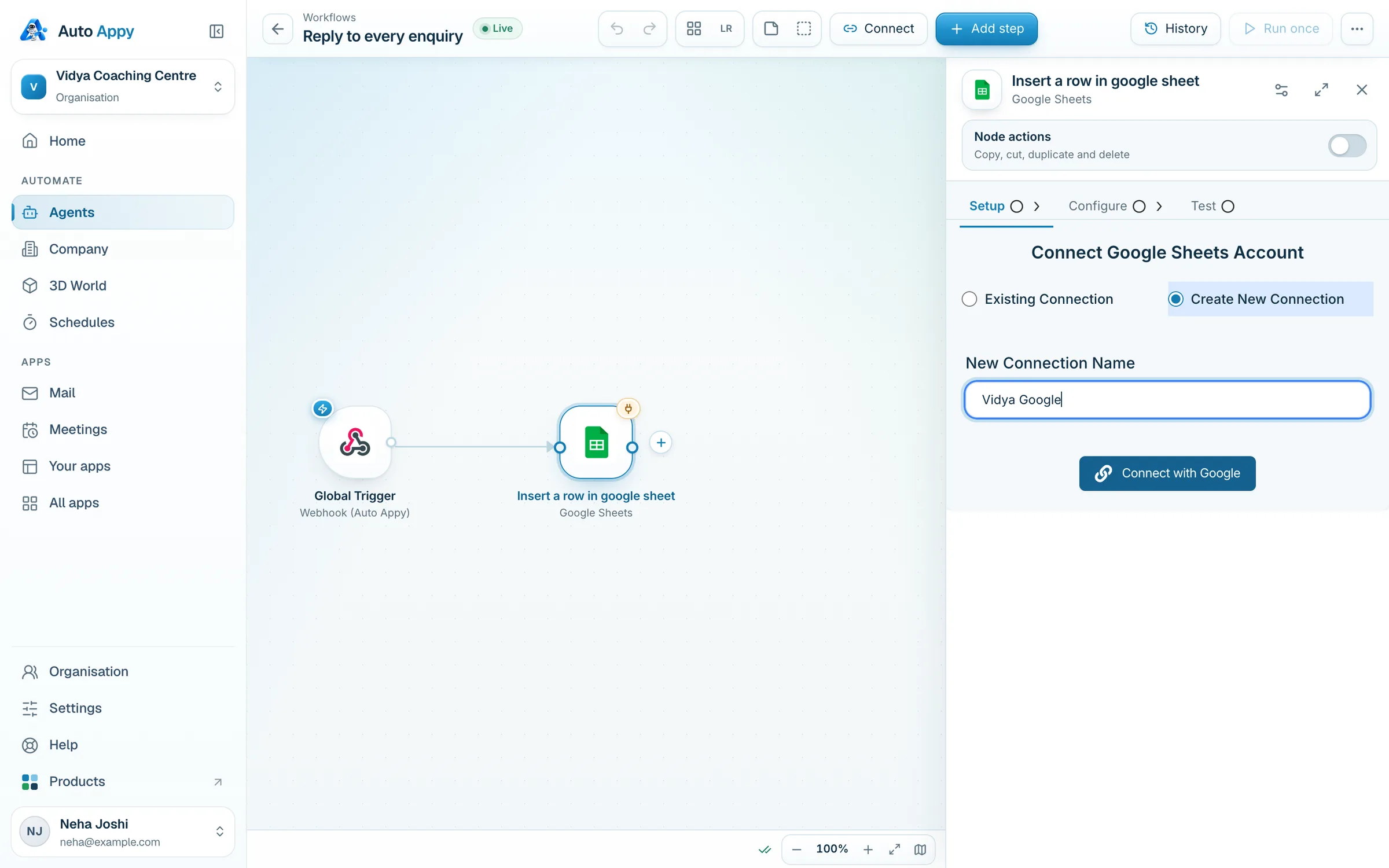
- On Setup, choose Create New Connection, name it
Vidya Google, click Connect with Google, sign in with the account that owns the sheet and click Allow. - On Configure, choose the Enquiries 2026 spreadsheet and its sheet. Each column appears as a field.
- Fill the columns. Type
/in a field to pick from the enquiry: Student_name into Student, Phone into Phone, Course into Course, and so on. Type fixed text where you need it, for exampleWebsitein a Source column. - Save & continue, then Test This Node. A new row appears in the sheet and the step turns Live.
4. Send the WhatsApp demo invite
Section titled “4. Send the WhatsApp demo invite”-
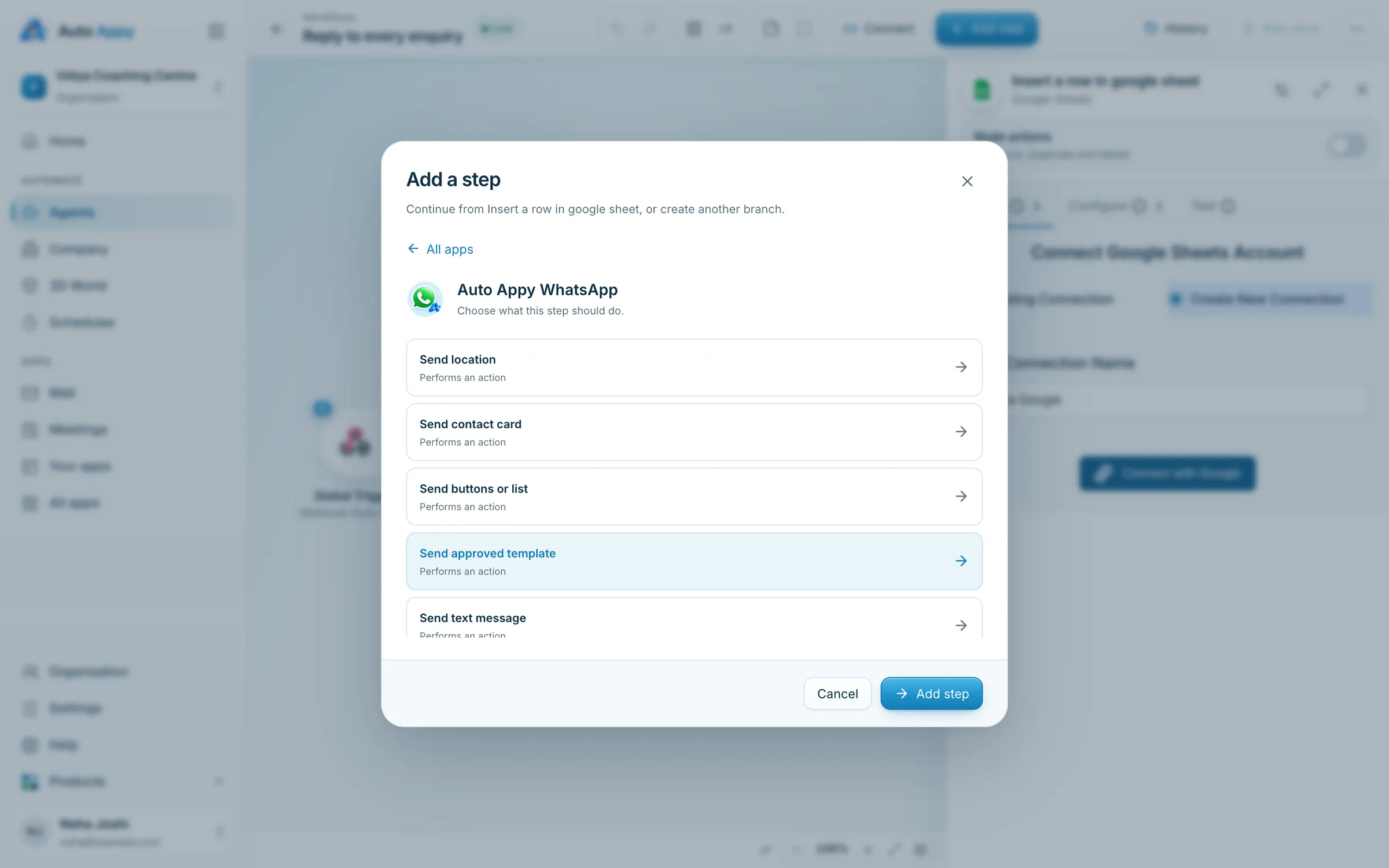
Click + after Google Sheets and choose Auto Appy WhatsApp → Send approved template.
-
On Setup, connect Vidya’s WhatsApp account (organisation ID plus a Read and write API key from Auto Appy WhatsApp). See Connect an app.
-
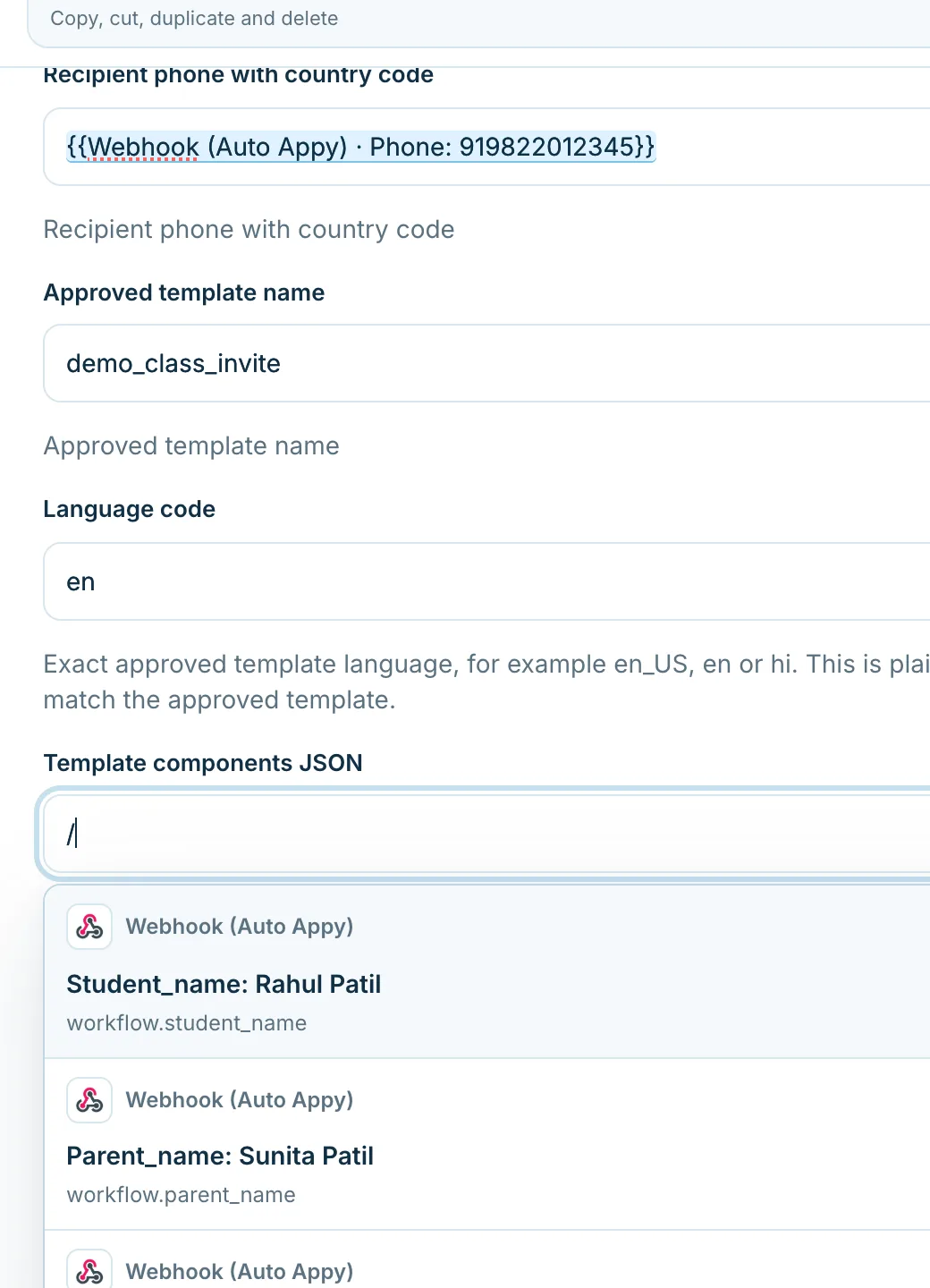
On Configure:
- WhatsApp account and Phone number: the centre’s business number.
- Recipient phone with country code: type
/and pick Phone. - Approved template name:
demo_class_invite. Language code:en. - Template components JSON: fill the template’s variables in the format Meta uses (the field’s help text shows it). For a template that reads “Hi
{{1}}, thanks for your interest in our{{2}}batch…”:
[{ "type": "body", "parameters": [{ "type": "text", "text": "{{workflow.student_name}}" },{ "type": "text", "text": "{{workflow.course}}" }]}] -
Save & continue, then Test This Node with your own number as the sample phone first.
5. Go Live and watch it work
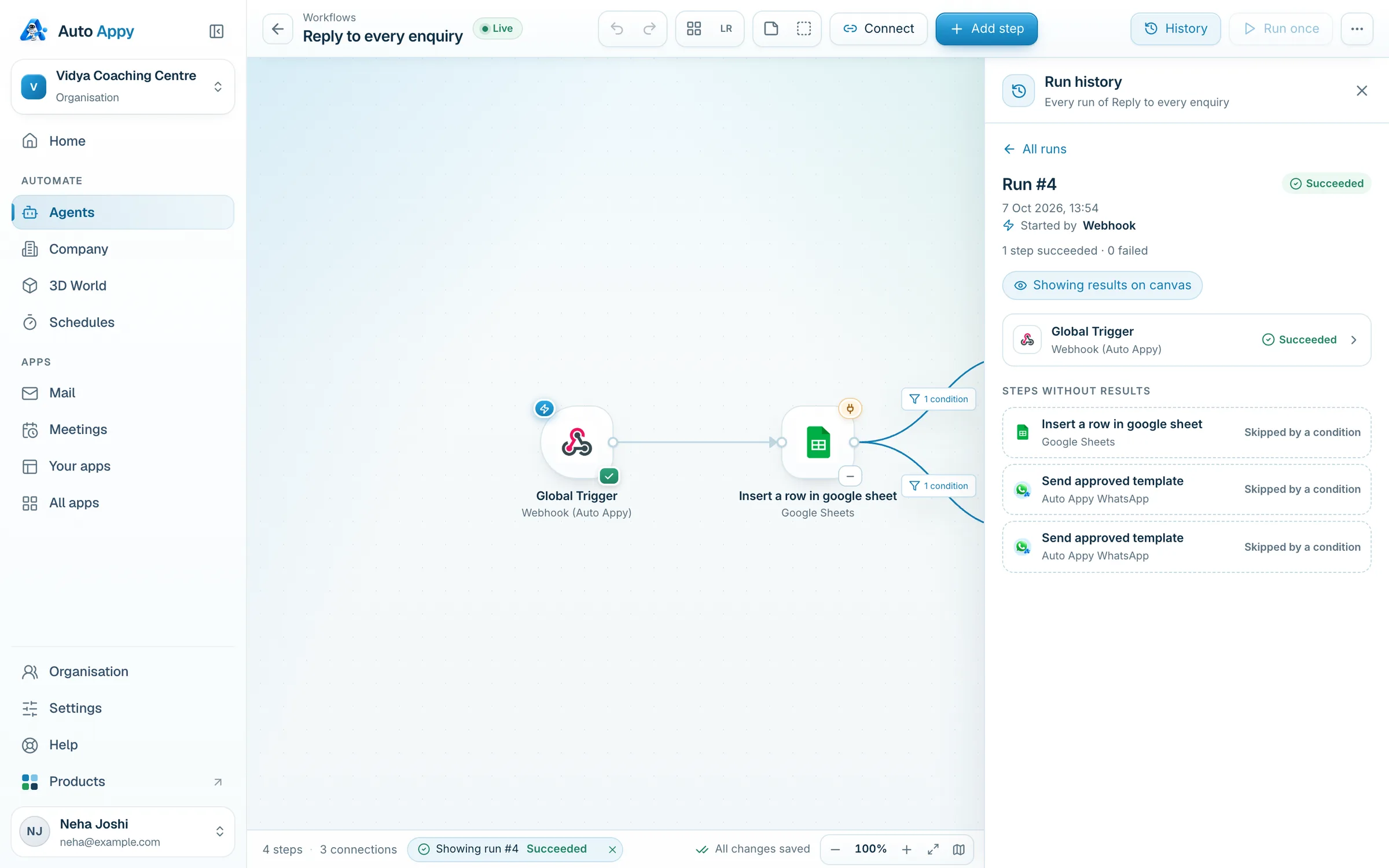
Section titled “5. Go Live and watch it work”The status pill should say Live (capturing the sample switched it on). Each step turns Live when its test passes. Submit the website form for real, then open History:
What changed for Vidya
Section titled “What changed for Vidya”| Before | After |
|---|---|
| Reply the next morning, if someone remembered. | Reply in about two seconds, any hour. |
| An hour a day copying enquiries into the sheet. | The sheet fills itself. |
| No record of which enquiries were contacted. | Every run is in History, with the time and result. |
At 40 enquiries a day this workflow uses about 3 tasks per enquiry, roughly 3,600 tasks a month. See Plans and billing.
- Add a Branch column to the sheet and map
branchinto it. - Change the invite so it mentions the branch: add a third template variable with
{{workflow.branch}}. - Submit the form from your own phone and find your run in History.
Using this for your own business?
A clinic would capture patient_name and doctor; a gym would capture plan and preferred_time. The three steps stay exactly the same.
- Webhook triggerA private URL that starts the workflow when a form sends data to it.
- Capture sample dataOne real submission teaches Auto Appy which fields exist.
- App connectionsSign in once (Google) or paste a key (WhatsApp); every workflow can reuse it.
- MappingType / to put the enquiry's details into later steps.
- Test and LiveA passing test switches a step Live; tests are real.
For trainers: how to teach this lesson
- Open with a question: “How long does your business take to reply to a new enquiry at 9 pm?” Write the answers on the board.
- Demo live: build the trigger, then ask a student to submit the form from their phone while everyone watches the sample arrive.
- Common mistakes: the phone without 91 (WhatsApp fails); testing the WhatsApp step with a real parent’s number; a form whose field names differ from the captured sample.
- Check understanding: “What would change if enquiries also came from Google Forms?” (Answer: add another trigger; that’s the real-estate Lesson 1.)